
Threads Insights 2026: How to See Analytics and Profile Views
2026-10-14
To see your Threads Insights, open your profile in the Threads app and tap the insights icon (the bar chart near the top). On the web, go to threads.com/insights. Insights shows your views, interactions, followers and audience for up to the last 90 days. Only you can see them.
Here's where to find each number, what it means, why Insights sometimes doesn't show, and what it leaves out.
How to see insights on Threads
On your phone:
- Open the Threads app and go to your profile
- Tap the insights icon (bar chart) near the top of the profile
- Choose a date range and tap any section to see details
On the web:
- Log in at threads.com
- Go to threads.com/insights
For a single post: open the post and tap its view count to see that post's numbers.
What do Threads Insights mean?
Insights has four main sections.
| Section | What it shows | | ------------ | ------------------------------------------------------------------------- | | Views | How many times your posts were seen, over time, and where views came from | | Interactions | Likes, replies, quotes and reposts | | Followers | Follower count and growth over the selected period | | Audience | Followers' age range, gender, and top countries and cities |
Views
A chart of views over time, plus a breakdown of where they came from: home feed, profile, search, activity, Instagram and Facebook. If most views come from the home feed, the ranking system is showing your posts. If many come from your profile, people are visiting you directly.
Interactions
Likes, replies, quotes and reposts. Replies and quotes take more effort than likes and usually say more about whether a post started a conversation.
Followers
Your follower count and how it changed over the period. Look for the days with jumps and check what you posted around them.
Audience demographics
Age, gender, and top countries and cities of your followers. On personal accounts, this section needs at least 100 followers. Use the country and city data to schedule posts in your audience's time zone.
How to see profile views on Threads
Profile views appear in your Insights as a count: how many times your profile was viewed in the selected period.
Threads does not show who viewed your profile, and no tool can, because the data isn't available. The number counts visits, not unique people. More in can you see who viewed your Threads profile?
Why are my Threads insights not showing?
Work through these:
- Update the app. Older versions may not show the insights icon or new sections.
- Check you're on your own profile. Insights only exist for your own account. You can't see anyone else's.
- Demographics need 100 followers. If views and interactions show but the audience section doesn't, this is usually why.
- New or inactive accounts. If you haven't posted in the selected period, there's nothing to show. Try a longer range.
- Data delay. Recent numbers can take some time to appear. Check again later.
- Try the web. If the app won't load Insights, open threads.com/insights in a browser.
- Log out and back in if nothing else works.
If one post's numbers look off, wait a day. Counts often update after the first hours.
What Threads Insights doesn't show
Native Insights is useful but limited:
| Need | In Threads Insights? | | -------------------------------- | ------------------------ | | Views, interactions, followers | Yes | | Audience demographics | Yes, with 100+ followers | | History longer than 90 days | No | | Engagement rate per post | No | | Best time to post | No | | Sorting all posts by performance | No | | Saves | No | | Who viewed your profile or post | No |
You can calculate engagement rate yourself: (likes + replies + reposts + quotes) ÷ views. Doing it for every post by hand gets tedious.
Threads analytics beyond native Insights
If you want more than 90 days, per-post comparison, or posting-time analysis, use a tool built on the official Threads API.
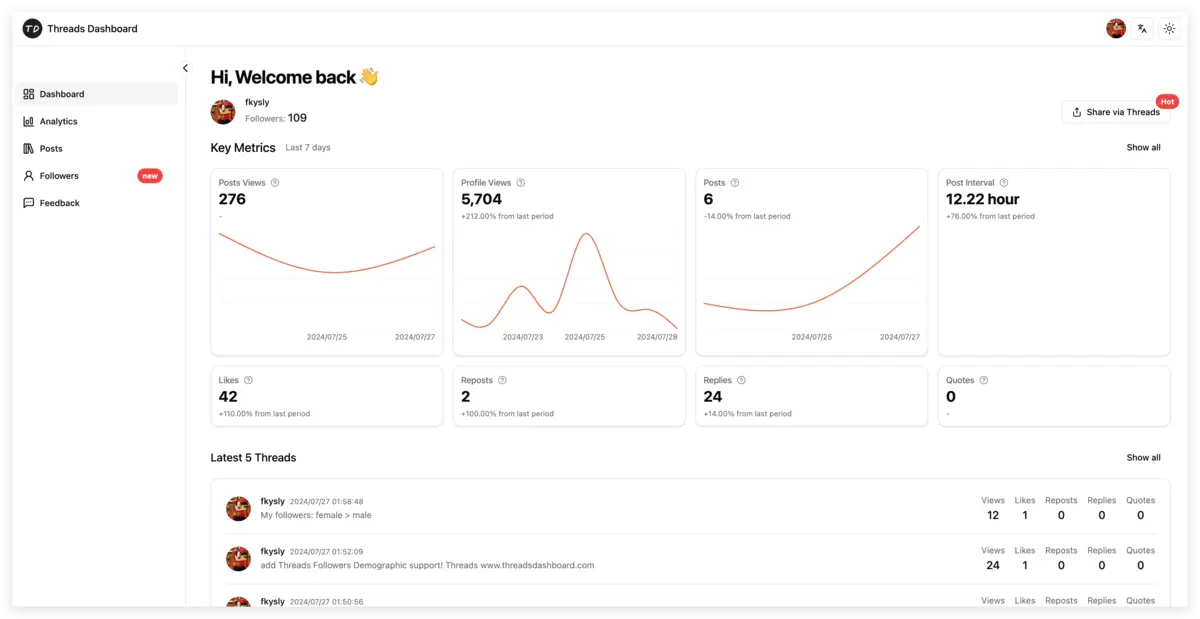
Threads Dashboard signs in with your Threads account through the official API. It's read-only and never asks for your password. It shows:
- Follower growth over time
- Views, likes, replies, reposts and quotes for each post
- Profile views
- A posts list you can sort by views or engagement and export to CSV
- Follower demographics
- Your best posting times by hour and weekday, from your own posts
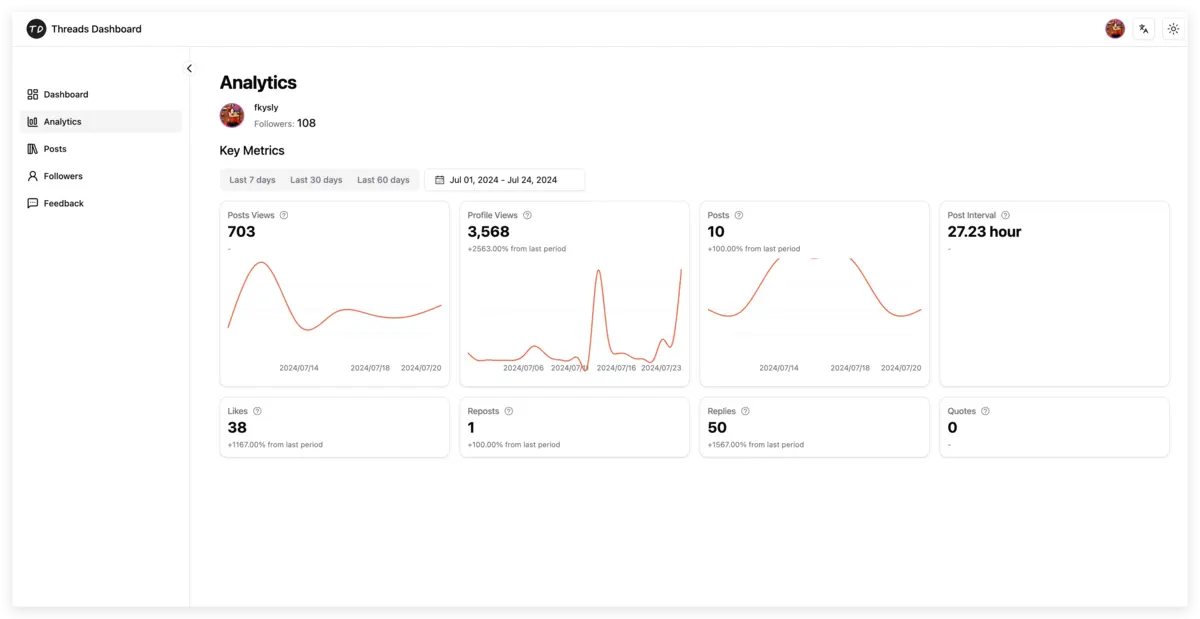
Pro keeps 365+ days of history, so you can compare this month with last year instead of losing data after 90 days.
How to use Threads Insights to grow
- Weekly: find your top three posts by views and by replies. Note the topic, format and time.
- Compare view sources. More home-feed views means the ranking is working for you. More profile views means people are curious about you.
- Track follower jumps. Match them to specific posts and repeat what worked.
- Use demographics for timing. Post when your top countries are awake. See the best time to post on Threads.
For the bigger picture, read how the Threads algorithm works and how to grow on Threads.
Common questions
Can other people see my Threads insights?
No. Insights are private to the account owner.
Can I see insights for someone else's Threads account?
No. You can only see public numbers on their posts, such as like and reply counts.
How far back do Threads insights go?
Up to 90 days in native Insights. For longer history you need a tool that stores your data over time.
Do business accounts get more insights?
Reports say business accounts can see audience demographics before reaching 100 followers. The other sections are the same.
Why don't my views add up to my followers?
Views count every time a post is seen, including by non-followers and repeat views. They aren't unique people.
See your full Threads analytics
Native Insights is a good start. For longer history, per-post comparisons and posting-time analysis, try Threads Dashboard. The free plan never expires, and Pro is $9.99/month.